

Do you love making video calls extra fun for your friends and family? Video chats are a great way to stay close to the people you love. Sometimes, a plain video screen can feel a bit boring or dull. Did you know you can spice things up with cool visual styles? Learning How to Get Effects on Google Duo is super simple. With just a few quick taps, you can transform your ordinary screen into a magical world. Let us explore how you can unlock these amazing video tools right now.
What Are Google Duo Video Effects?
Video effects are fun digital tools that change how you look on camera. They include silly face masks, colorful filters, and background blurs. When you want to make someone smile, these playful features do the trick. They bring extra energy to any chat room. Think of them like digital costumes that you wear right on your phone screen. Everyone can use them with very little effort.
Checking Your Phone and App Version
Before you start adding fun filters, you need to check your device. Google Duo has transitioned into the Google Meet app experience. Make sure your application is updated to the latest version from your app store. Your phone also needs a relatively modern operating system. Most newer Android phones and iPhones support these features seamlessly. If your app is up to date, you are ready for the next step.
Starting a Call With Your Friend
You cannot apply camera filters before the call actually begins. First, open up your video calling app on your mobile device. Look through your contact list and pick someone you want to talk to. Tap their name to start a normal video call. Wait for them to pick up the phone on the other end. Once you see your own face on the screen, you can start adding fun tools.
Finding the Hidden Effects Button
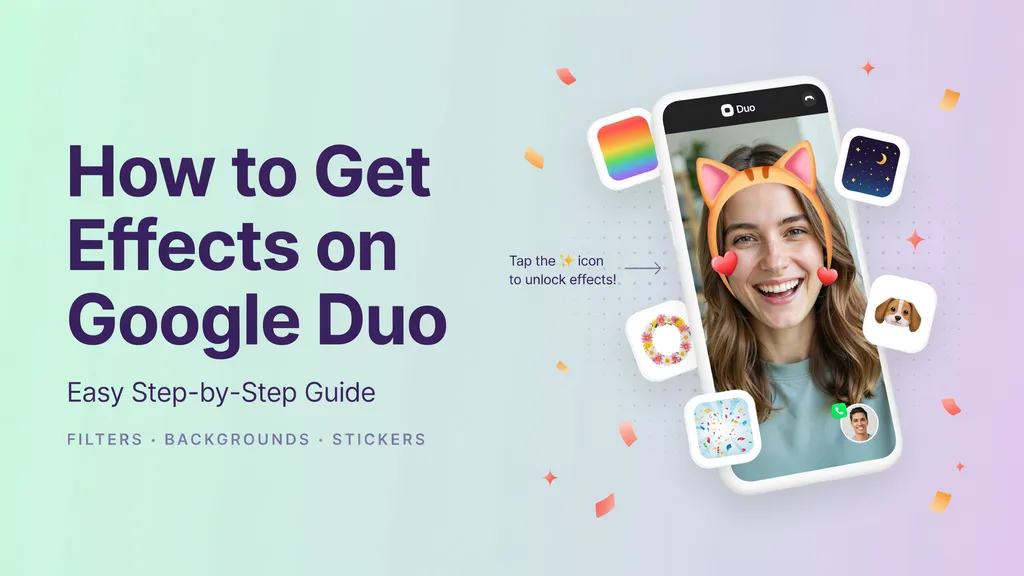
While you are talking on your active call, look closely at your phone screen. Tap gently anywhere on the display to show the hidden control panel. Look for a small icon that looks like a star or a sparkle. That is your magical effects button. Tap on that button to open a brand-new menu filled with exciting visual choices.
Choosing Fun Filters and Masks
Once the effects menu opens up, you will see a big row of options. You can swipe left or right to preview different styles in real time. Try turning yourself into a cute animal or an astronaut. Tap any filter you like, and it will pop right onto your face. If you do not like how it looks, just swipe to try a completely different one.
Changing and Blurring Your Background
Do you have a messy room behind you that you want to hide? Background tools can save the day. Inside the effects menu, look for background choices. You can choose to gently blur your room so only you stand out. You can also pick fun virtual spaces like a beach or a cozy coffee shop. This keeps your personal space private while keeping your chats super interesting.
Using Family Mode for Extra Doodles
If you are calling younger family members, try out family mode. This special mode lets you draw colorful doodles directly on the screen. A blank canvas opens up so you can play creative games together. The app even locks certain buttons so you do not hang up by accident. It is a wonderful way to keep kids entertained during long distance family catch-ups.
How to Remove Your Active Effects
Sometimes you want to go back to your normal look. Removing your active filters takes only a second. Open up the effects menu again by tapping your screen. Look for the option that says “None” or tap the remove button. Your video feed will instantly clear up. You can switch back and forth between regular video and filtered video as many times as you want.
Troubleshooting Common Filter Problems
Do your filters look laggy or slow down your phone? Sometimes older devices struggle with heavy graphic overlays. Make sure you close other open apps to save your battery and memory. A strong Wi-Fi connection also helps your video stay crisp and clear. If an effect refuses to load, restart your application completely and try your call again.
Summary of Best Practices
To get the most out of your video chats, keep your software updated. Always check your lighting before a call so filters map onto your face accurately. Experiment with different styles during holidays to find seasonal surprises. Most importantly, have fun exploring these creative tools with your loved ones!
Complete Detailing Table
| Feature Name | What It Does | Where to Find It | Device Requirement |
| Face Filters | Adds masks and animated items | Effects Menu | Supported Android / iOS |
| Background Blur | Hides messy rooms softly | Background Tab | Modern Mobile Phones |
| Family Mode | Allows drawing and doodles | Call Options Menu | Android / iOS |
| Stackable Effects | Combines filters and frames | Stack Panel | Updated Meet App |
Frequently Asked Questions
Q1: Can I use effects on old phone models?
Most visual overlays require newer operating systems like Android 9 or iOS 14 and newer to run smoothly without lag.
Q2: Do other people see my active filters?
Yes, anyone on the video call with you will see the fun filters and background changes you select in real time.
Q3: Do filters drain my phone battery faster?
Yes, running real-time graphics and facial tracking uses extra processor power, which can use up your battery slightly quicker.
Q4: Can I upload my own custom background images?
Google Duo relies on pre-built backgrounds and blurs rather than allowing personal custom photo uploads on mobile.
Q5: How do I turn off all effects at once?
Simply open the effects menu during your call and tap the remove all or none option to clear your screen instantly.
Q6: Why can’t I find the effects button on my screen?
If the button is missing, your app might need an update, or your specific device hardware might not support live video filters.
Conclusion
Mastering how to get effects on google duo opens up a whole new world of fun for your daily conversations. Whether you want to share a laugh with a friend using a silly mask or keep things professional with a blurred background, these tools make every chat better. Try opening your app today, start a call, and tap that magic icon to see what you can create! Share this guide with a friend who loves video calling!
